 简体中文
简体中文 繁體中文
繁體中文 English
 Français
 Русский
 日本語
日本語 Tiếng Việt
 한국어
한국어 Deutsch
 Español
 Italiano
 Português
 العربية
 ไทย
ไทย Bahasa Indonesia
 Bahasa Melayu
 Türkçe
 Polski
 Nederlands
 Dansk
Dansk Norsk
Norsk Қазақша
14|Chapter 11: Using Advanced Claude Features — Crazyrouter Series 14
14|Chapter 11: Using Advanced Claude Features — Crazyrouter Series 14. This article covers unified access, configuration checks, and hands-on workflows for Claude Code and Crazyrouter, helping readers follow the site documentation to build reusable development workflows.
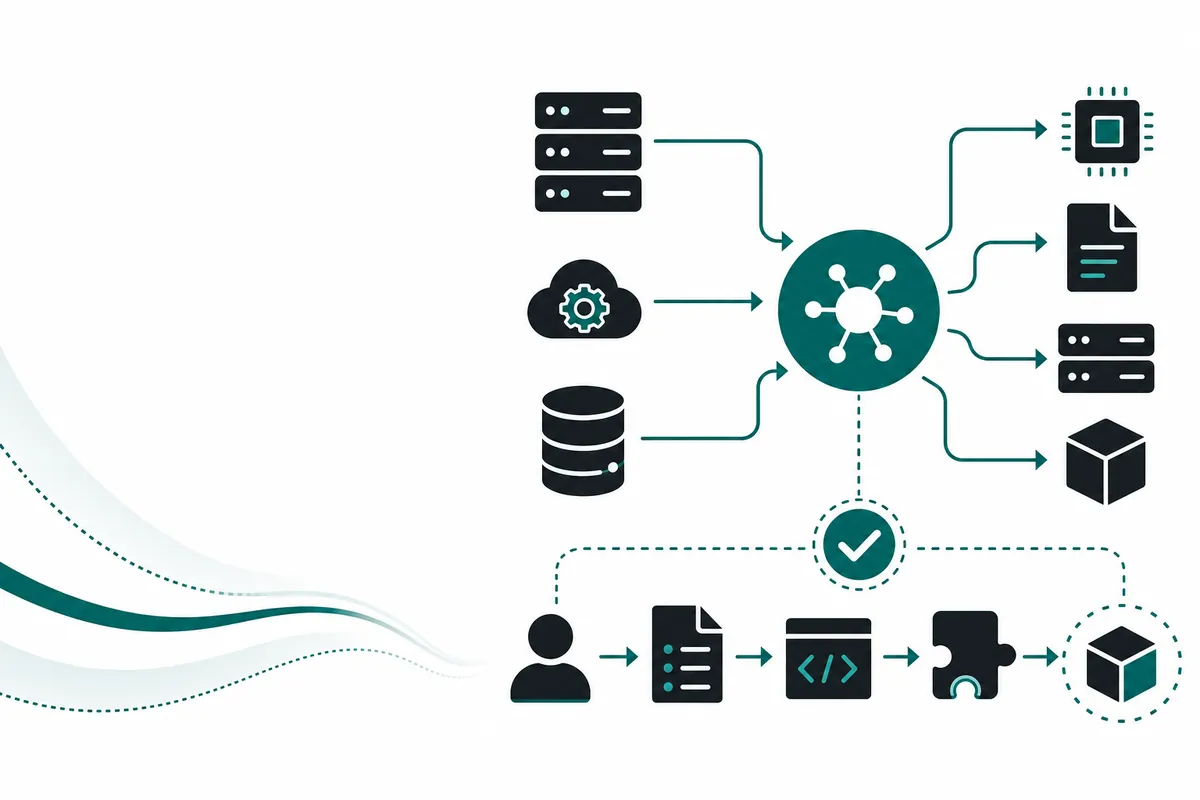
14|Chapter 11: Using Advanced Claude Features: Crazyrouter Series 14#
This is article 14 in the Crazyrouter Claude Code series. This article focuses on “Chapter 11: Using Advanced Claude Features: Crazyrouter Series 14,” covering Chapter 11: Using Advanced Claude Features, 11.1 Using Custom Tools, and What Custom Tools Are.
Unified access convention: for Claude Code / Anthropic native clients, use
ANTHROPIC_BASE_URL=https://cn.crazyrouter.com; for OpenAI-compatible SDKs, HTTP requests, and frontend/backend applications, usebase_url=https://cn.crazyrouter.com/v1.
What This Article Covers#
- Who it’s for: developers who are using Claude Code, preparing to connect to domestic models, or want to unify their team’s calls through Crazyrouter.
- What you’ll learn: how to configure environment variables according to the Crazyrouter documentation, organize workflows, and avoid the
/v1/v1/...issue caused by an incorrect Base URL. - Recommended preparation: first create a separate API Token in the Crazyrouter console, then follow the Claude Code integration documentation to complete the basic setup.
Chapter 11: Using Advanced Claude Features#
11.1 Using Custom Tools#
Claude Code supports custom tools, allowing you to extend its capabilities for specific needs.
What Are Custom Tools?#
Custom tools are specific functional modules created by users based on their own needs. They can extend Claude Code’s capabilities.
Key Features of Custom Tools#
- Targeted: designed for specific needs
- Reusable: can be used multiple times
- Configurable: parameters can be adjusted as needed
- Integratable: can be integrated with other tools
Types of Custom Tools#
- Data processing tools: process data in specific formats
- Content generation tools: generate specific types of content
- Analysis tools: perform specific analyses
- Automation tools: automate specific workflows
How to Find and Use Existing Tools#
Ways to Find Tools#
- Official documentation: check the official Claude Code documentation
- Community sharing: look for tools shared by users in the community
- Plugin marketplace: search for tools in plugin marketplaces
- Search engines: use search engines to find tools
Steps to Use a Tool#
- Install the tool: install it according to the tool’s instructions
- Configure the tool: configure parameters as needed
- Use the tool: call the tool in Claude Code
- Evaluate the results: assess the tool’s effectiveness
- Optimize and adjust: optimize and adjust as needed
How to Configure Simple Tools#
Configuration Example: Data Cleaning Tool#
Requirement: you need a tool to clean Excel data.
Configuration steps:
-
Define the functionality
- Remove duplicate rows
- Fill blank cells
- Standardize date formats
- Standardize number formats
-
Create a prompt template
Please help me clean this Excel data:
- Remove duplicate rows
- Fill blank cells with "N/A"
- Standardize the date format as YYYY-MM-DD
- Standardize numbers to two decimal places
-
Save it as a tool
- Save the prompt template as a tool
- Name it "Data Cleaning Tool"
- Set a quick invocation method
-
Use the tool
- Upload the Excel file
- Call the "Data Cleaning Tool"
- Get the cleaned data
Configuration Example: Copywriting Generation Tool#
Requirement: you need a tool to generate product copy.
Configuration steps:
-
Define the functionality
- Generate product descriptions
- Generate ad copy
- Generate social media content
- Generate email content
-
Create a prompt template
Please help me generate [type] copy:
- Product name: [product name]
- Key features: [feature 1], [feature 2], [feature 3]
- Target users: [target users]
- Style requirements: [style]
- Word count requirement: [word count]
-
Save it as a tool
- Save the prompt template as a tool
- Name it "Copywriting Generation Tool"
- Set a quick invocation method
-
Use the tool
- Provide product information
- Call the "Copywriting Generation Tool"
- Get the generated copy
Case Example#
Case: Create a Meeting Minutes Tool#
Requirement: you need a tool to automatically generate meeting minutes.
Configuration steps:
-
Define the functionality
- Extract key meeting points
- Organize decisions
- List action items
- Generate meeting minutes
-
Create a prompt template
Please help me generate meeting minutes based on the meeting notes:
- Meeting time: [time]
- Meeting location: [location]
- Attendees: [people]
- Meeting content: [content]

Meeting minutes requirements:
- Extract key meeting points
- Organize decisions
- List action items, including owners and deadlines
- Include the schedule for the next meeting
-
Save it as a tool
- Save the prompt template as a tool
- Name it "Meeting Minutes Tool"
- Set a quick invocation method
-
Use the tool
- Provide the meeting notes
- Call the "Meeting Minutes Tool"
- Get the generated meeting minutes
Results:
- Previous time required: 2–3 hours
- Current time required: 30–45 minutes
- Time saved: 70–80%
Tips#
- Start simple: begin with simple tools and gradually add complexity
- Document configuration: record the tool configuration process for future use
- Test and validate: after configuration, test and validate the tool’s results
- Keep optimizing: continuously optimize the tool based on usage
- Share and learn: share useful tools with colleagues and learn from each other
Now, try creating your own custom tool!
11.2 Creating Intelligent Assistants#
Intelligent assistants are an advanced Claude Code feature. You can create dedicated AI assistants that focus on specific domains and provide more professional services.
What Is an Intelligent Assistant?#
An intelligent assistant is an AI assistant configured for specific needs. It has specialized domain knowledge and personalized service capabilities.
Key Features of Intelligent Assistants#
- Specialized: focused on a specific domain
- Personalized: configured according to individual needs
- Efficient: provides more accurate service
- Customizable: can be adjusted as needed
Use Cases for Intelligent Assistants#
- Professional consulting: provide consulting in professional domains
- Content creation: create specific types of content
- Data analysis: perform specific types of analysis
- Workflow automation: automate specific workflows
How to Create a Dedicated Assistant#
Creation Steps#
Step 1: Define the assistant’s positioning
- Define the assistant’s professional domain
- Define the assistant’s main functions
- Define the assistant’s target users
Step 2: Configure assistant parameters
- Set the assistant’s name
- Set the assistant’s description
- Set the assistant’s professional domain
- Set the assistant’s response style
Step 3: Train the assistant’s knowledge
- Provide domain knowledge
- Provide case examples
- Provide best practices
Step 4: Test the assistant’s performance
- Test the assistant’s professional capabilities
- Test the assistant’s response quality
- Test the assistant’s response speed
Step 5: Optimize the assistant configuration
- Optimize based on test results
- Adjust assistant parameters
- Add to the assistant’s knowledge
Creation Example: Marketing Assistant#
Positioning: an intelligent assistant focused on the marketing domain.
Configuration:
- Name: Marketing Assistant
- Description: an intelligent assistant focused on the marketing domain, providing services such as marketing strategy, copywriting, and data analysis
- Professional domain: marketing
- Response style: professional, innovative, practical
Knowledge training:
- Marketing theory knowledge
- Marketing case analysis
- Marketing best practices
- Marketing tool usage
Testing:
- Test marketing strategy suggestions
- Test copywriting capabilities
- Test data analysis capabilities
- Test question-answering capabilities
Configuring the Assistant’s Professional Domain#
Key Points for Professional Domain Configuration#
- Knowledge scope: clearly define the assistant’s knowledge scope
- Professional depth: determine the assistant’s level of expertise
- Update frequency: set the knowledge update frequency
- Quality standards: set response quality standards
Configuration Examples#
Domain 1: Marketing domain
- Knowledge scope: marketing theory, marketing strategies, marketing tools
- Professional depth: intermediate
- Update frequency: weekly
- Quality standards: professional, practical, innovative
Domain 2: Finance domain
- Knowledge scope: financial theory, financial analysis, financial tools
- Professional depth: advanced
- Update frequency: monthly
- Quality standards: accurate, detailed, professional
Domain 3: Human resources domain
- Knowledge scope: human resources theory, human resources policies, human resources tools
- Professional depth: intermediate
- Update frequency: monthly
- Quality standards: professional, compliant, practical
Testing the Assistant’s Performance#
Testing Methods#
- Functional testing: test the assistant’s main functions
- Quality testing: test the assistant’s response quality
- Performance testing: test the assistant’s response speed
- User experience testing: test the user experience
Test Criteria#
- Accuracy: whether the response is accurate
- Completeness: whether the response is complete
- Practicality: whether the response is practical
- Professionalism: whether the response is professional
Test Examples#
Test 1: Marketing strategy recommendations
- Question: How can we increase the product's market share?
- Expected: Provide specific marketing strategy recommendations
- Evaluation: accuracy, completeness, practicality, professionalism
Test 2: Copywriting
- Question: Help me write product ad copy
- Expected: Provide high-quality advertising copy
- Evaluation: accuracy, completeness, practicality, professionalism
Test 3: Data analysis
- Question: Help me analyze this sales data
- Expected: Provide in-depth data analysis
- Evaluation: accuracy, completeness, practicality, professionalism
Case Example#
Case: Creating a Customer Support Assistant#
Positioning: an intelligent assistant focused on customer service
Configuration:
- Name: Customer Support Assistant
- Description: An intelligent assistant focused on customer service, providing services such as customer inquiries, Q&A, and service recommendations
- Domain expertise: customer service
- Response style: friendly, professional, patient
Knowledge training:
- Customer service theory
- Customer service skills
- FAQ handling
- Customer complaint handling
Testing:
- Test customer inquiry handling
- Test Q&A capability
- Test service recommendation capability
- Test complaint handling capability
Results:
- Response time: reduced from an average of 4 hours to 30 minutes
- Customer satisfaction: increased from 75% to 90%
- Improvement: significant
Tips#
- Clarify requirements: define the assistant's requirements and positioning clearly
- Train continuously: keep training the assistant's knowledge base
- Test regularly: regularly test the assistant's performance
- Collect feedback: gather user feedback and keep optimizing
- Share and learn: share assistant configurations with colleagues and learn from each other
Now, try creating your own intelligent assistant!
11.3 Designing Automated Workflows#
Automated workflows are an important way to improve work efficiency. By designing automated workflows, you can let Claude Code handle repetitive tasks automatically, saving a lot of time and effort.
Identifying Tasks That Can Be Automated#
Characteristics of Automatable Tasks#
- Repetitive: tasks that need to be performed repeatedly
- Standardized: tasks with clear standards and processes
- Rule-based: tasks with explicit rules
- Data-driven: tasks based on data processing
Common Automatable Tasks#
-
Document processing
- Standardizing document formats
- Extracting document content
- Generating documents in bulk
-
Data processing
- Data cleaning
- Data analysis
- Report generation
-
Content creation
- Copy generation
- Report writing
- Email replies
-
Process execution
- Organizing meeting minutes
- Managing to-do items
- Sending notifications
Designing Automated Workflows#
Workflow Design Principles#
- Simplicity: the workflow should be simple and easy to understand
- Reliability: the workflow should be stable and reliable
- Maintainability: the workflow should be easy to maintain
- Scalability: the workflow should be easy to extend
Workflow Design Steps#
Step 1: Analyze the task
- Identify the task inputs
- Identify the task outputs
- Identify the task steps
Step 2: Design the workflow
- Design the workflow steps
- Design the workflow sequence
- Design the workflow trigger conditions
Step 3: Implement the workflow
- Use Claude Code to implement the workflow
- Configure workflow parameters
- Test the workflow results
Step 4: Optimize the workflow
- Optimize based on test results
- Adjust workflow parameters
- Improve workflow efficiency
Workflow Design Example#
Task: Automatically generate a weekly report
Step 1: Analyze the task
- Input: this week's work data
- Output: weekly report document
- Steps: collect data, analyze data, generate the report
Step 2: Design the workflow
- Export this week's data from the project management tool
- Use Claude Code to analyze the data
- Use Claude Code to generate the weekly report
- Manually review the weekly report
- Send the weekly report
Step 3: Implement the workflow
- Configure data export
- Configure Claude Code analysis
- Configure Claude Code generation
- Set up manual review
- Set up automatic sending
Step 4: Optimize the workflow
- Optimize the data export method
- Optimize the analysis prompt
- Optimize the generation template
- Improve review efficiency
Configuring Automation Conditions#
Types of Trigger Conditions#
- Time trigger: triggered at a scheduled time interval
- Event trigger: triggered by a specific event
- Data trigger: triggered by data changes
- Manual trigger: triggered manually
Trigger Condition Configuration#
Time trigger configuration
- Daily trigger: at a fixed time every day
- Weekly trigger: at a fixed time every week
- Monthly trigger: at a fixed time every month
Event trigger configuration
- File upload: triggered after a file is uploaded
- Email received: triggered after an email is received
- Task completed: triggered after a task is completed
Data trigger configuration
- Data update: triggered after data is updated
- Data reaches a threshold: triggered after data reaches a threshold
- Data anomaly: triggered when data is abnormal
Configuration Examples#
Configuration 1: Generate a daily report every day
- Trigger condition: every day at 18:00
- Workflow: collect today's data, generate the daily report, send the daily report
Configuration 2: Generate a weekly report every week
- Trigger condition: every Friday at 17:00
- Workflow: collect this week's data, generate the weekly report, send the weekly report
Configuration 3: Automatically reply when an email is received
- Trigger condition: a specific email is received
- Workflow: analyze the email content, generate a reply, send the reply
Testing Automation Results#
Testing Methods#
- Functional testing: test the functionality of the automated workflow
- Performance testing: test the performance of the automated workflow
- Stability testing: test the stability of the automated workflow
- User experience testing: test the user experience
Test Metrics#
- Accuracy: whether the automated workflow is accurate
- Completeness: whether the automated workflow is complete
- Efficiency: whether the automated workflow is efficient
- Stability: whether the automated workflow is stable
Test Examples#
Test 1: Daily report generation workflow
- Test content: test whether daily report generation is accurate
- Test method: compare manually generated reports with automatically generated reports
- Test result: the automated workflow is accurate, complete, efficient, and stable
Test 2: Email reply workflow
- Test content: test whether email replies are accurate
- Test method: compare manual replies with automatic replies
- Test result: the automated workflow is accurate, complete, efficient, and stable
Case Example#
Case: Automated Meeting Minutes Workflow#
Task: Automatically generate meeting minutes
Workflow design:
Step 1: Meeting recording
- Use recording equipment to record the meeting
- Automatically save the recording file
Step 2: Speech to text
- Use a speech recognition tool
- Convert the recording to text
Step 3: Generate meeting minutes
- Use Claude Code to generate meeting minutes
- Extract key meeting points
- Organize decisions
- List to-do items
Step 4: Manual review
- Manually review the meeting minutes
- Adjust inaccurate content
- Add missing information
Step 5: Send meeting minutes
- Automatically send them to meeting participants
- Save the meeting minutes archive
Trigger condition:
- Automatically triggered after the meeting ends
Test results:
- Accuracy: 95%
- Completeness: 90%
- Efficiency: saves 80% of the time
- Stability: stable and reliable
Results:
- Original time required: 2–3 hours
- Current time required: 30–45 minutes
- Time saved: 70–80%
Tips#
- Start with small workflows: begin with simple workflows, then gradually make them more complex
- Optimize continuously: keep optimizing workflows based on actual usage
- Document configurations: record workflow configurations for future use
- Test and validate: after configuration is complete, test and validate the workflow results
- Back up configurations: back up workflow configurations to prevent loss
Now, try designing your own automated workflow!
Related Reading#
- Previous article: Article 13
- Next article: Article 15
- Configuration guide: Connecting Claude Code to Crazyrouter
- API endpoint notes: Base URL and
/v1usage - One-click configuration script: Crazyrouter Claude Code one-click configuration script
Getting Started with Crazyrouter#
If you're ready to connect Claude Code, Chinese models, or your own applications to Crazyrouter through a unified setup, follow this order:
- Go to the Crazyrouter console, create a dedicated API Token, and manage permissions separately by project or team.
- For Claude Code, use the root domain:
https://cn.crazyrouter.com; for OpenAI-compatible SDKs, use:https://cn.crazyrouter.com/v1. - When you need to automatically check the environment or quickly write configuration, use the Crazyrouter Claude Code one-click configuration script.
- If debugging fails, check the console logs first, then verify the API Endpoint notes, with special attention to whether an extra
/v1was added to the Base URL. When you need to evaluate model costs or choose a different model, first check the Crazyrouter pricing and models page, then add the models you commonly use to the Token whitelist.